
Configure Emails on Outlook
Follow these steps to configure emails on outlook
- Open Outlook
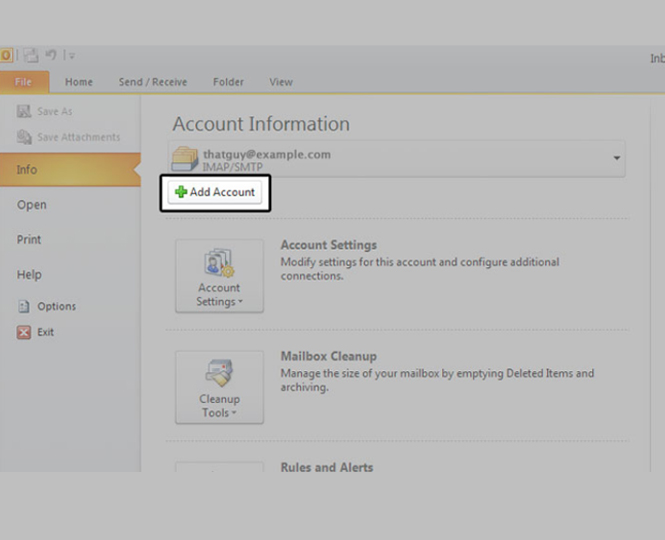
Click File, then Add Account
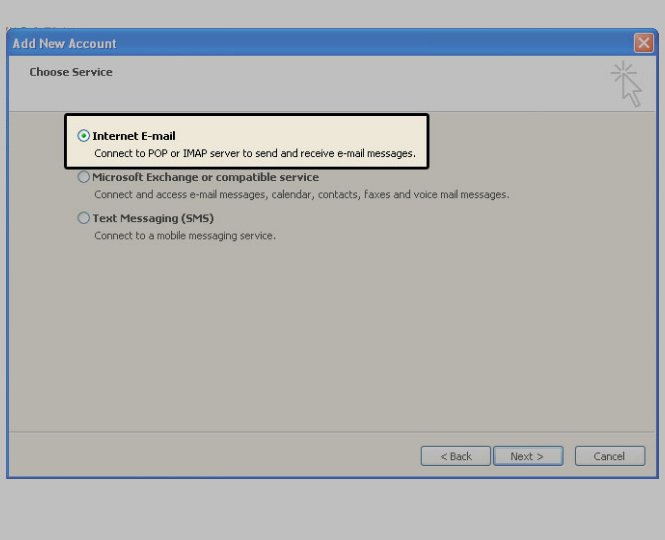
- Next, select ‘Manually configure server settings’ or ‘additional server types’, then click Next

Choose Internet E-mail, then click Next
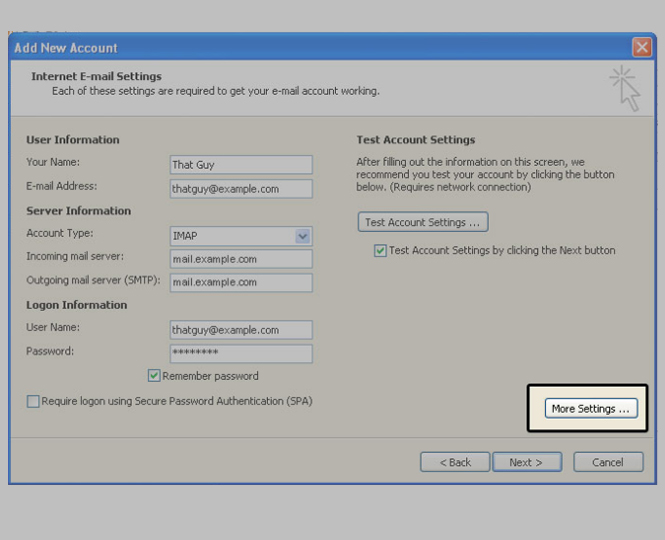
Enter required email information
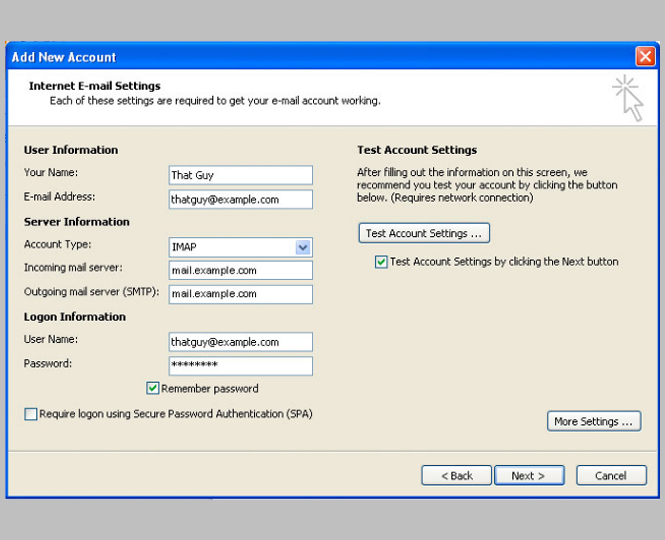
- Enter Your Name as you want it to appear.
- Enter your full email address for ex. yourname@example.com in the ‘Email address’ field.
- Select POP3 or IMAP.
- Enter mail.example.com in the Incoming mail (POP3, IMAP) server: field.
- Enter mail.example.com in the Outgoing mail (SMTP) server: field. To avoid common authentication issues with Outlook, we strongly advise using SSL and port 465 for SMTP connections.
- Enter your full email address, username@example.com, in the User Name field.
- Enter your email password in the Password: field
- Click on More Settings
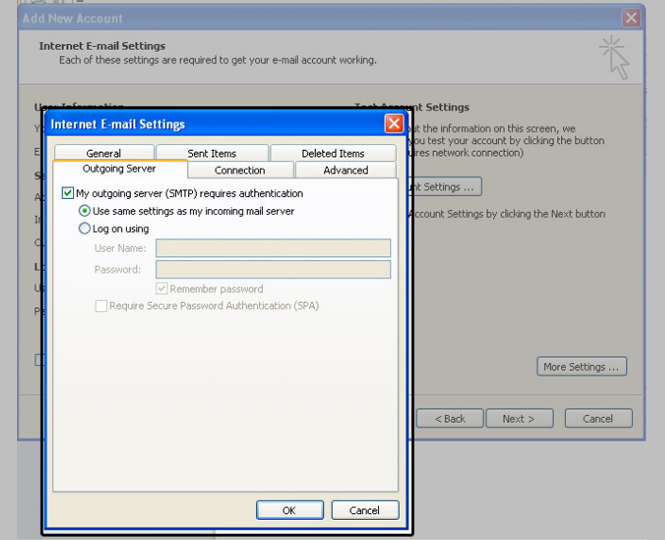
Click on the Outgoing Server tab. Check My outgoing server (SMTP) Requires Authentication. Make sure Use same setting as my incoming mail server is also checked. Click on OK.
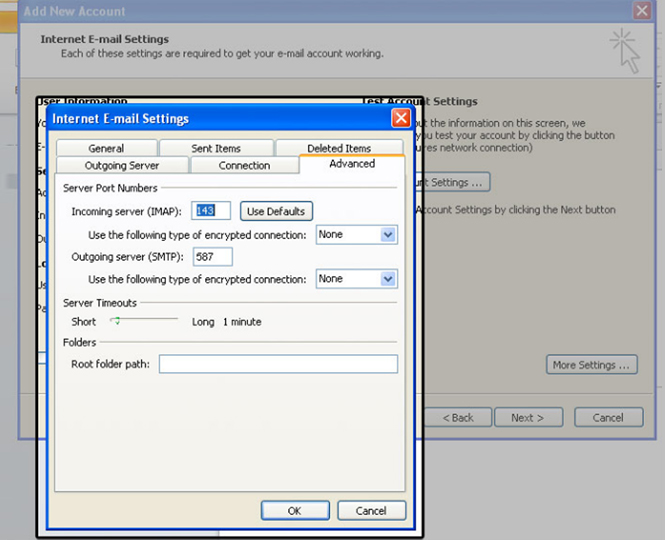
Click the Advanced tab, and change the Outgoing server (SMTP) port to the alternate port of 465, with SSL encryption, then click on OK.
- Click the Test Account Settings button and you should see all items with green check marks… Click the Close Button to close the test window.
- Click OK / Finish to save your settings.
Recent Posts
- Why Your Business Isn’t Showing Up on Google Maps (And How to Fix It)
- How Manufacturing Companies Can Use Digital Marketing to Win More B2B Clients
- How Professional SEO helps Manufacturing Companies Win More High-Value Clients
- Why Fast-Growing Businesses Invest in Professional Website Development Services
- AI SEO vs Traditional SEO: What Should Businesses Choose in 2026?